Guide
Workspaces
The Workspaces page gives you a centralized view of all the Microsoft 365 workspaces you own or belong to. Instead of checking each admin center separately, you can browse your Teams, SharePoint sites, Viva Engage communities, and Microsoft 365 Groups in one place.
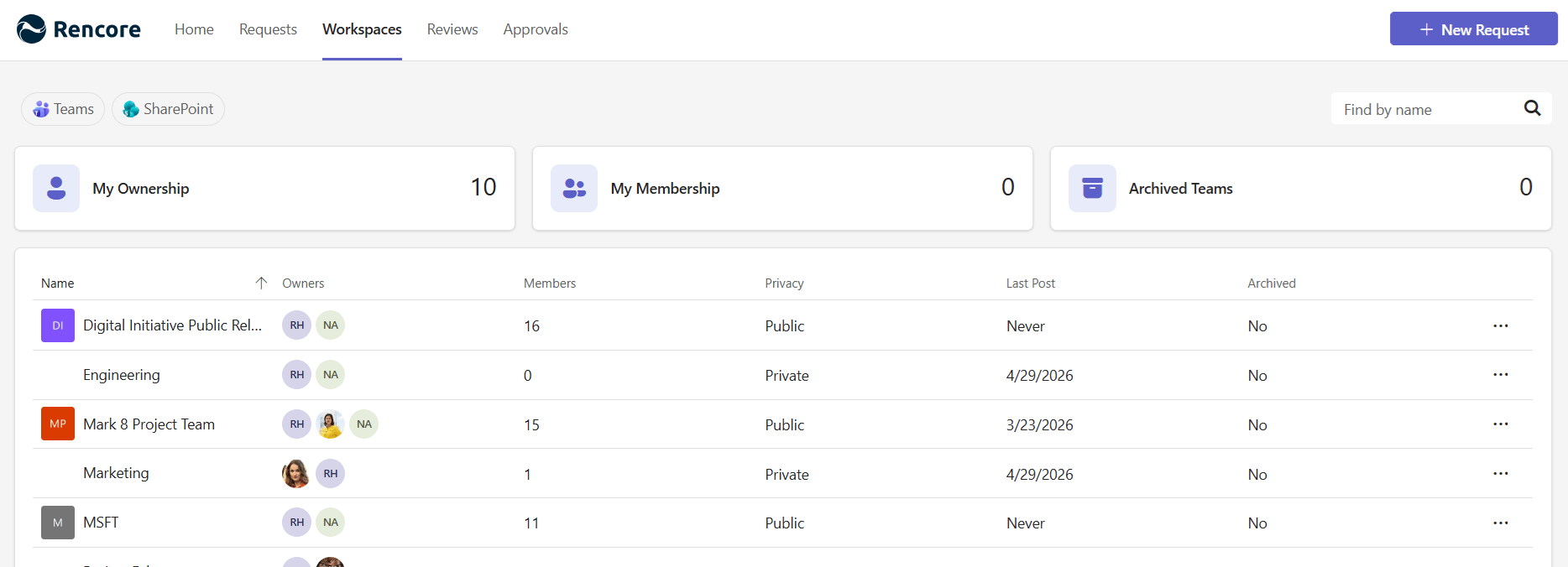
Browsing your workspaces
Service tabs
At the top of the page, tabs let you switch between service types:
- Teams - Your Microsoft Teams workspaces
- SharePoint - Your SharePoint Online sites
- Viva Engage - Your Viva Engage communities
- Groups - Your Microsoft 365 Groups
The app opens the first available service tab. Click any tab to switch views.
Filter tiles
Below the service tabs, filter tiles help you narrow down your workspaces. Each tile shows a count of matching workspaces. Click a tile to filter the list - only one filter can be active at a time.
For example, the Teams service offers these filters:
Filter | Shows |
|---|---|
My Ownership | Teams where you are an owner |
My Membership | Teams where you are a member (but not an owner) |
Archived Teams | Archived Teams you own or belong to |

Searching
Use the search bar to find workspaces by name. Results update as you type. The search applies within whatever service tab and filter you currently have selected.
Workspace list
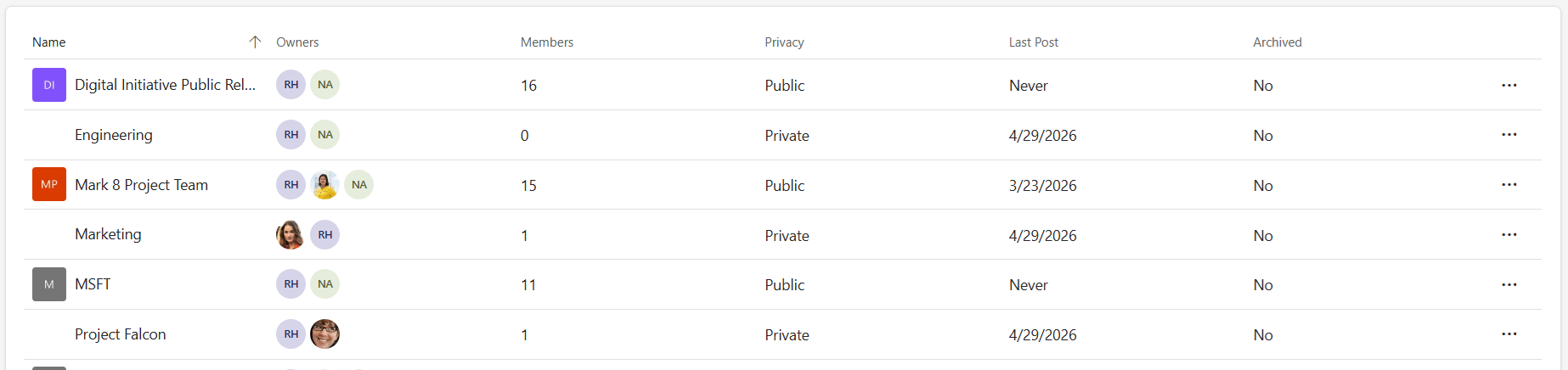
Workspaces are displayed in a sortable list. Click any column header to sort. The columns shown depend on the service type.
For Teams, you’ll see:
Column | Description |
|---|---|
Name | Team name with icon |
Owners | Profile pictures of workspace owners (hover for full names) |
Members | Total member count |
Privacy | Public, Private, or Org-wide |
Last Post | Date of the most recent activity |
Archived | Whether the workspace is archived |
Workspace details
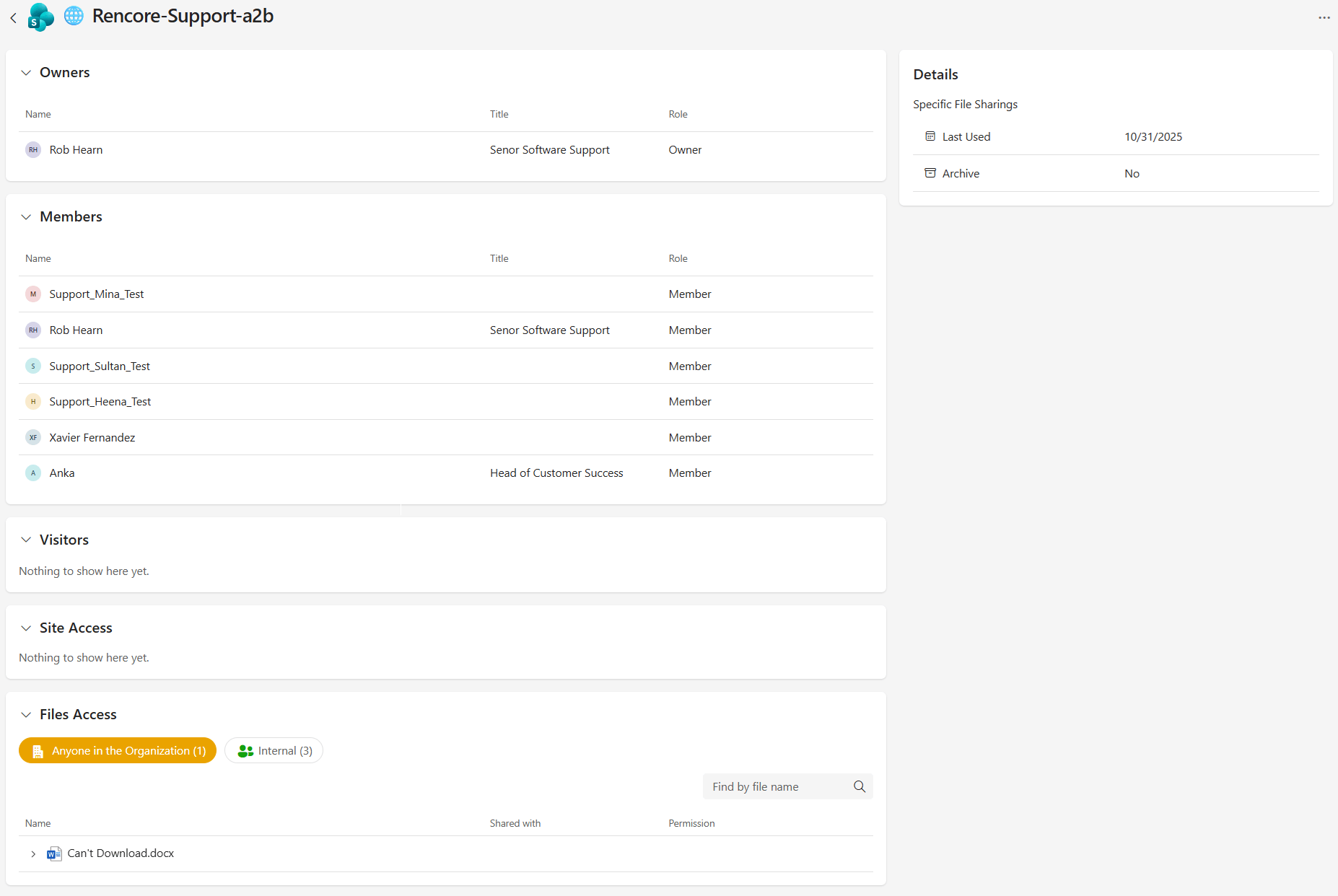
Click any workspace in the list to open its details page. The details page shows comprehensive information about the workspace in collapsible sections.
People
- Owners - Name, job title, and role for each owner
- Members - Name, job title, and role for each member. Guest users are marked with a distinct icon.
- Visitors (SharePoint sites only) - Users with visitor-level access
Access information
- Site Access (SharePoint sites only) - A hierarchical view of who has access to the site, organized by groups and individual users. Filter by access type: External, Organization-wide, or Internal.
- File Access (Teams and SharePoint) - Shows sharing links and direct access permissions for files and folders. Filter by sharing type: External, Anonymous, Anyone in the Organization, or Internal.
Workspace properties
A side panel displays key metadata about the workspace:
Property | Availability |
|---|---|
Privacy | Teams |
Last Post | Teams |
Last Used | SharePoint |
Archived | Teams, SharePoint |
Description | All services |
Sensitivity Label | When configured |